

THE
XVACADEMY APP
1. Download the App
- On your smartphone, go to the App Store (iOS) or Google Play Store (Android). Or use the links below.
- Search for "XVAcademy" and download the app.
2. Create & Log In / Add Payment Card
-
If you're a new user, tap Register and fill in your details.
-
If you already have an account, simply log in.
-
Once you're logged in:
-
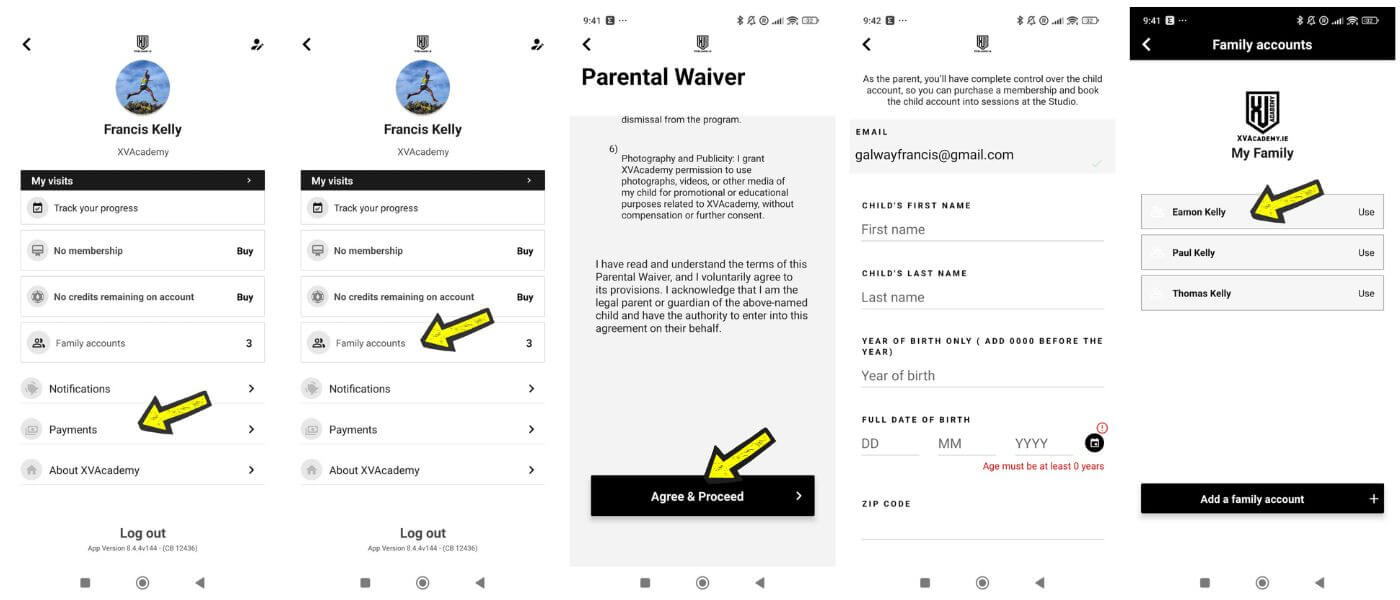
Navigate to your Profile section (top left of app).
-
Find the section labelled Payments
Enter your payment details.
-
Make sure the payment card is set as the default for bookings/subscriptions.
-
3. Add Family Account / Player Profile
If you wish to book sessions for a family member (e.g., child), follow these steps:
-
Go into your profile settings and click into Family Accounts.
-
Tap Add Family Account, and fill in the details for the player.
-
You (as the main/guardian account) will then be able to switch to that family member's profile when you want to book for them.
-
When booking a session for the family member (player), ensure you are using that family account (player) profile inside the app.
ADD PAYMENT CARD, ADD FAMILY ACCOUNTS
4. Book a Session
-
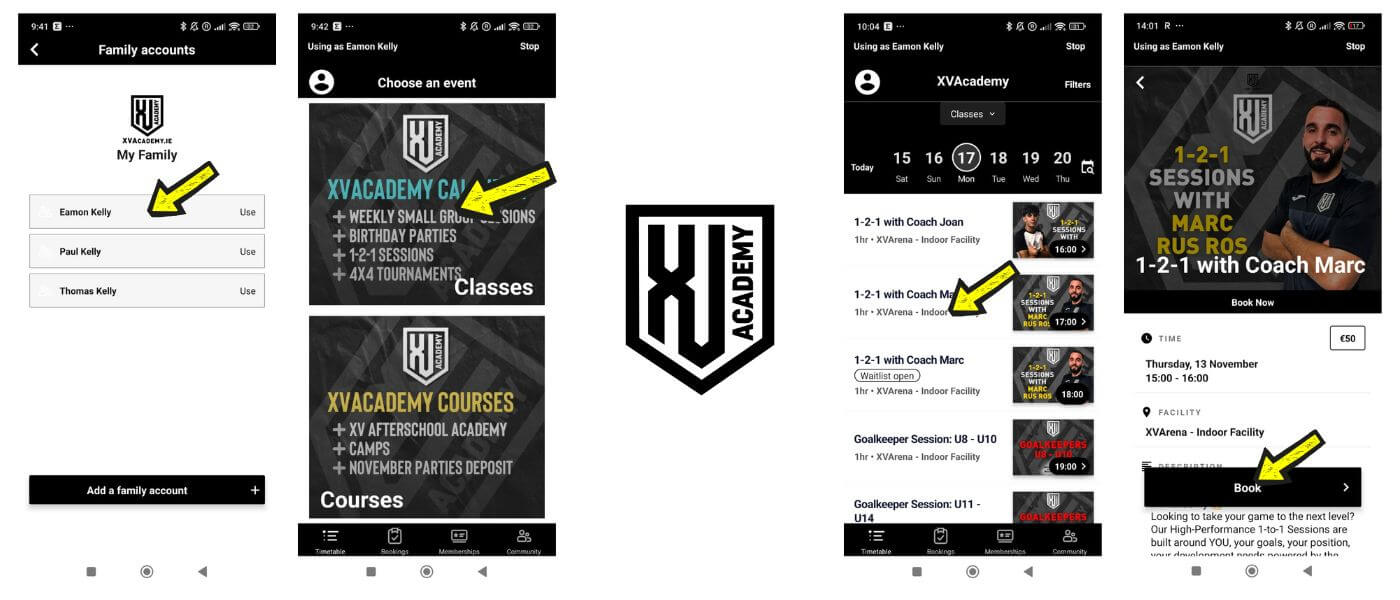
In the app, go to the Calendar or Courses
-
Browse the upcoming sessions offered: pick the date/time you want.
Make sure you are using the family account (player profile) of the person/child you wish to make the booking for.
-
Tap the session you wish to book.
-
Confirm the booking: the app will show price (if not a member) and credit status (if you are a member).
-
You will get a confirmation listing your booking.
-
If you're booking for a family member, make sure you've switched into their profile beforehand (via family account) and proceed the same way.
5. Unbook / Cancel a Session
-
Tab the Bookings tab at the bottom of the app.
-
Confirm your cancellation when prompted.
-
Once confirmed, the session will be removed from your upcoming bookings, and your spot will become available for other members.
-
You may receive a confirmation notification or email confirming your cancellation.
6. Why It's Important to Unbook
-
Free up space for other members: Sessions often have limited spots. If you can't attend, cancelling allows someone else to join.
-
Keep the schedule accurate: Helps the coaches plan the session size and resources effectively.
-
Promotes fairness and respect: Everyone gets a fair chance to book popular sessions.
Tips & Good to Know
Make sure your payment card is valid and has sufficient funds to avoid booking failures.
Double‑check you're booked under the correct person (your name vs family member).
-
Try to cancel as early as possible to allow others to take the spot.
-
For family accounts, make sure you're cancelling under the correct profile if you booked for a family member.
MAKING A BOOKING
HAVE YOU GOT A QUESTION?
Or send us an email at info@xvacademy.ie